Understanding Netgear Router LED Indicators: What Home Users Need to Know
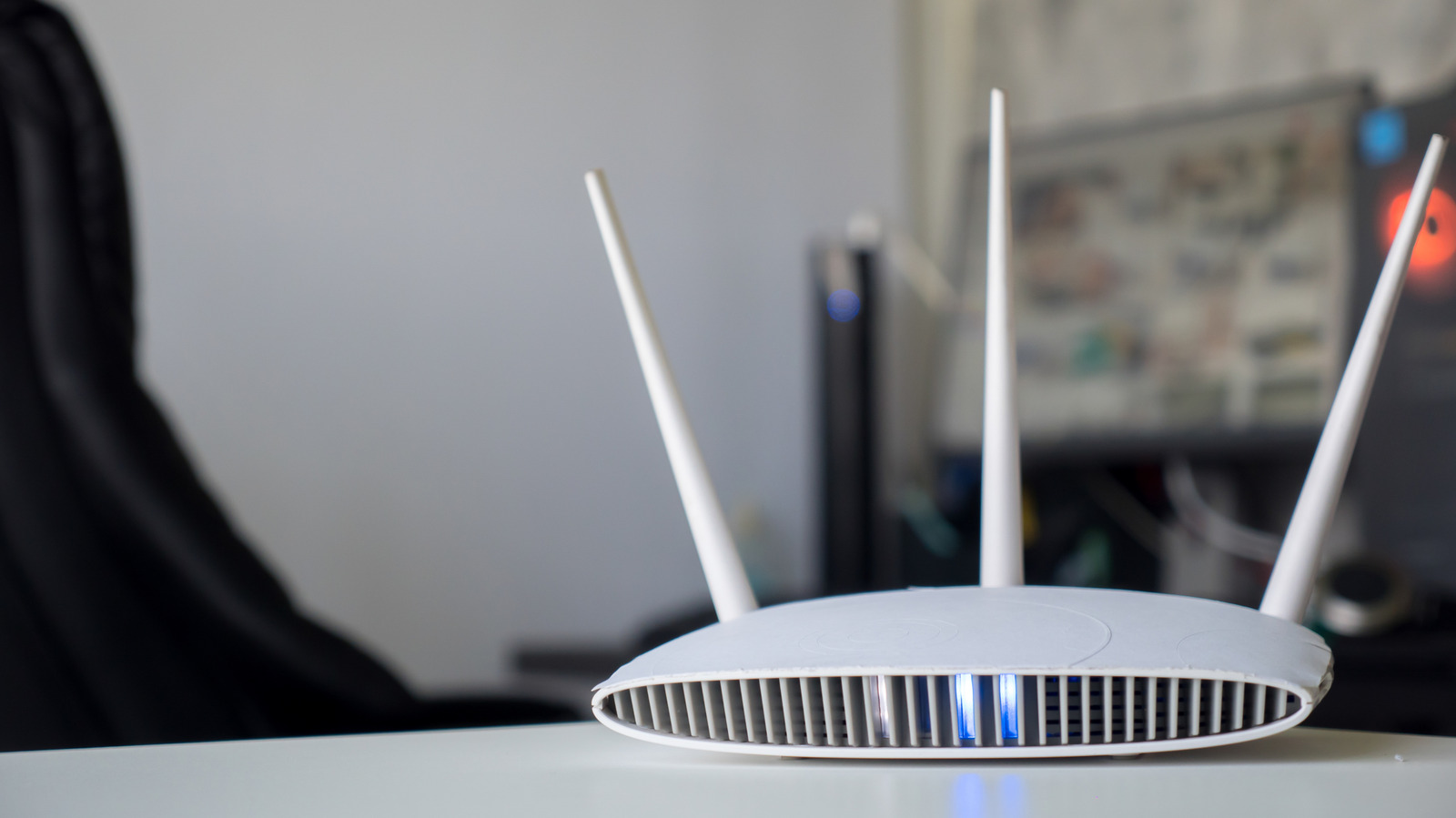
Netgear routers use a series of LED lights to report their condition, yet most flashes or colors don’t demand the average user’s intervention. Knowing which signals denote normal operation and which hint at problems enables owners to diagnose connectivity glitches on their own, without calling support.
The most recognizable lamps are the power LED, which stays lit while the unit receives electricity, and the broadband or WAN light that verifies a live internet feed from the modem. When these LEDs shine steadily, the router is both powered on and successfully linked to the external network.
Other lights monitor data traffic and wireless activity. The Ethernet ports typically sport a tiny lamp that blinks for each packet sent over a wired link, while the Wi‑Fi indicator may pulse to show devices attaching to the network or wireless data being transferred. Such fluctuating signals are ordinary and reassure users that traffic is flowing as intended.
More subtle alerts can be perplexing. A blinking or amber‑colored WAN LED, for example, might mean the router is trying to negotiate a link or that the broadband service is momentarily unavailable. Likewise, a red or amber Wi‑Fi status light can signal interference, a weak signal, or a configuration problem such as outdated firmware. In these situations, common first steps include resetting the router, inspecting cable connections, or opening the admin interface to review settings.
Some models add extra LEDs for features like USB ports, guest networks, or mesh extensions. While these lights can offer handy diagnostics for power users, they are generally unnecessary for day‑to‑day use. If no peripheral is attached, its corresponding LED stays off and does not impact the core internet connection.
In summary, homeowners should look for a steady green power light, a solid broadband indicator, and brief, regular flickers on data‑related LEDs as signs of healthy performance. Persistent amber or red lights—especially on the WAN or Wi‑Fi LEDs—warrant a quick cable check, a reboot, or a glance at the router’s web dashboard. By concentrating on these primary cues, users can keep their connection reliable while avoiding undue worry over less critical LED activity.


Comments (0)
Be the first to comment.
Join the discussion