Built‑In Windows Tools Let Users Quickly Spot Disk Space Hogs
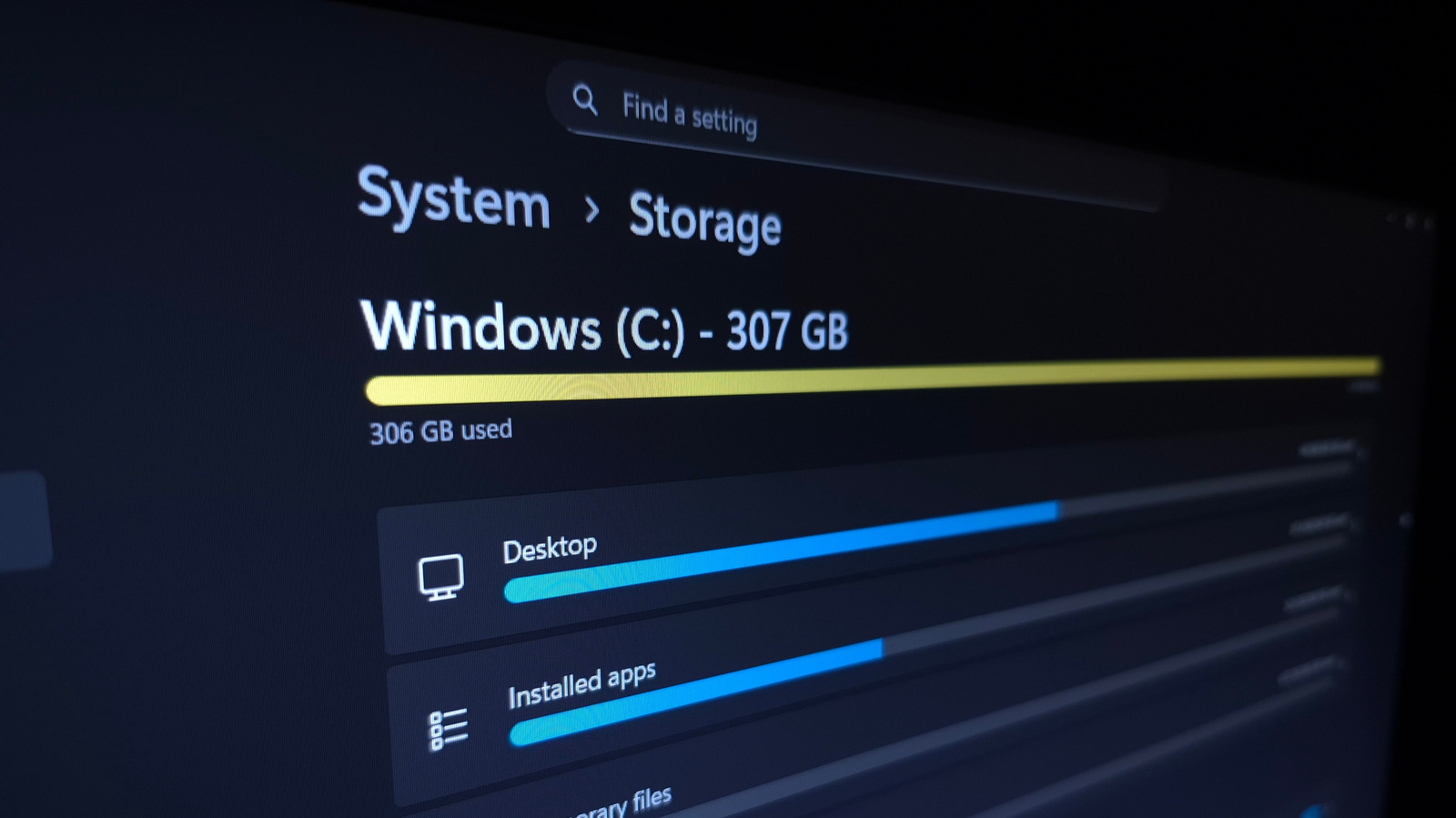
Microsoft has simplified the way Windows PCs locate and discard unnecessary files, presenting users with a clear picture of what occupies storage and providing one‑click options to reclaim space.
Every edition of Windows 10 and Windows 11 ships with a “Storage” page inside the Settings app that shows a visual breakdown of disk usage. By opening Settings → System → Storage, users are greeted with a colour‑coded chart that divides files into groups such as Apps & features, Documents, Temporary files, and Other. Selecting any segment expands it, exposing the biggest contributors within that category.
The view also includes a “Show more categories” link that reveals less obvious consumers like “System & reserved” and “Microsoft Store” data. For each group, Windows lists the top folders and files, enabling a user to locate, for example, a forgotten 10‑GB video file or an old installer. Clicking on “Temporary files” opens a checklist of items—recycle‑bin contents, previous Windows installations, browser cache, and more—that can be safely removed with a single click.
Beyond manual cleanup, the OS offers an automated feature called Storage Sense. When turned on, Storage Sense operates in the background and periodically erases files that match preset rules, such as items in the Recycle Bin older than 30 days or temporary files that haven’t been accessed for a defined period. Users can adjust these thresholds to suit their preferences and storage needs.
Although the built‑in tools handle most routine cases, power users sometimes prefer third‑party programs like WinDirStat or TreeSize for deeper analysis. These utilities produce treemap visualisations that map each folder and file to a proportionate rectangle, making outliers easy to spot. For the majority of consumers, however, the native Storage view supplies ample insight without installing extra software.
Keeping a Windows machine lean is more than a convenience. Low‑free‑space situations can slow file‑system performance, block Windows updates, and—on SSDs—speed up wear. Regularly checking storage usage helps preserve system responsiveness, guarantees critical updates install smoothly, and prolongs the hardware’s useful lifespan.
Looking forward, Microsoft has hinted at further tweaks to the Storage experience in upcoming Windows releases. Planned improvements include tighter OneDrive integration that automatically shifts seldom‑used files to the cloud, and more detailed reporting of system‑reserved space. Until those updates arrive, the current Settings‑based method remains a straightforward, cost‑free way for users to understand and manage the data filling their drives.



Comments (0)
Be the first to comment.
Join the discussion